

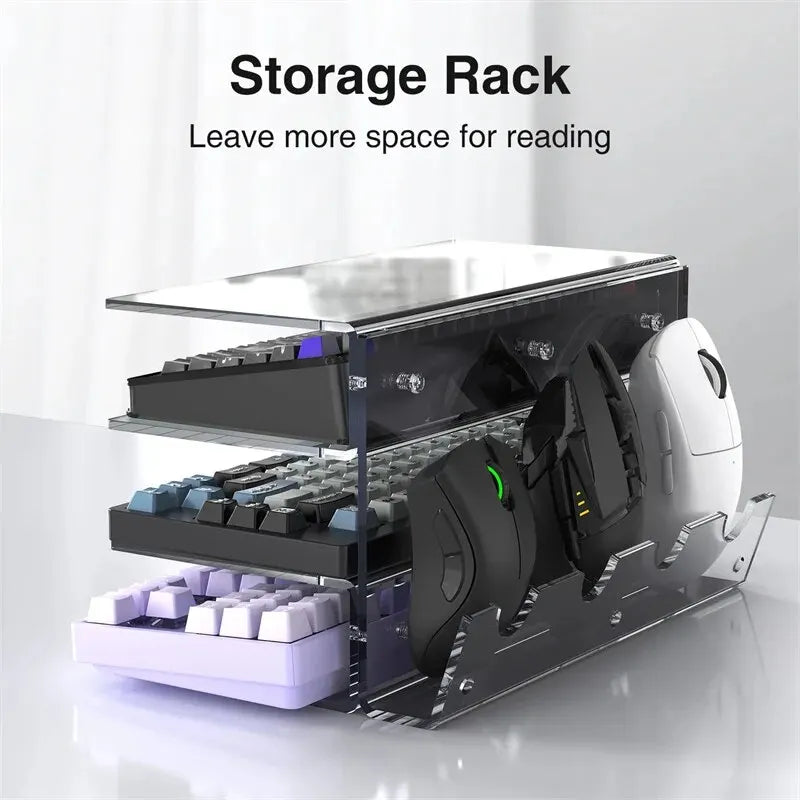

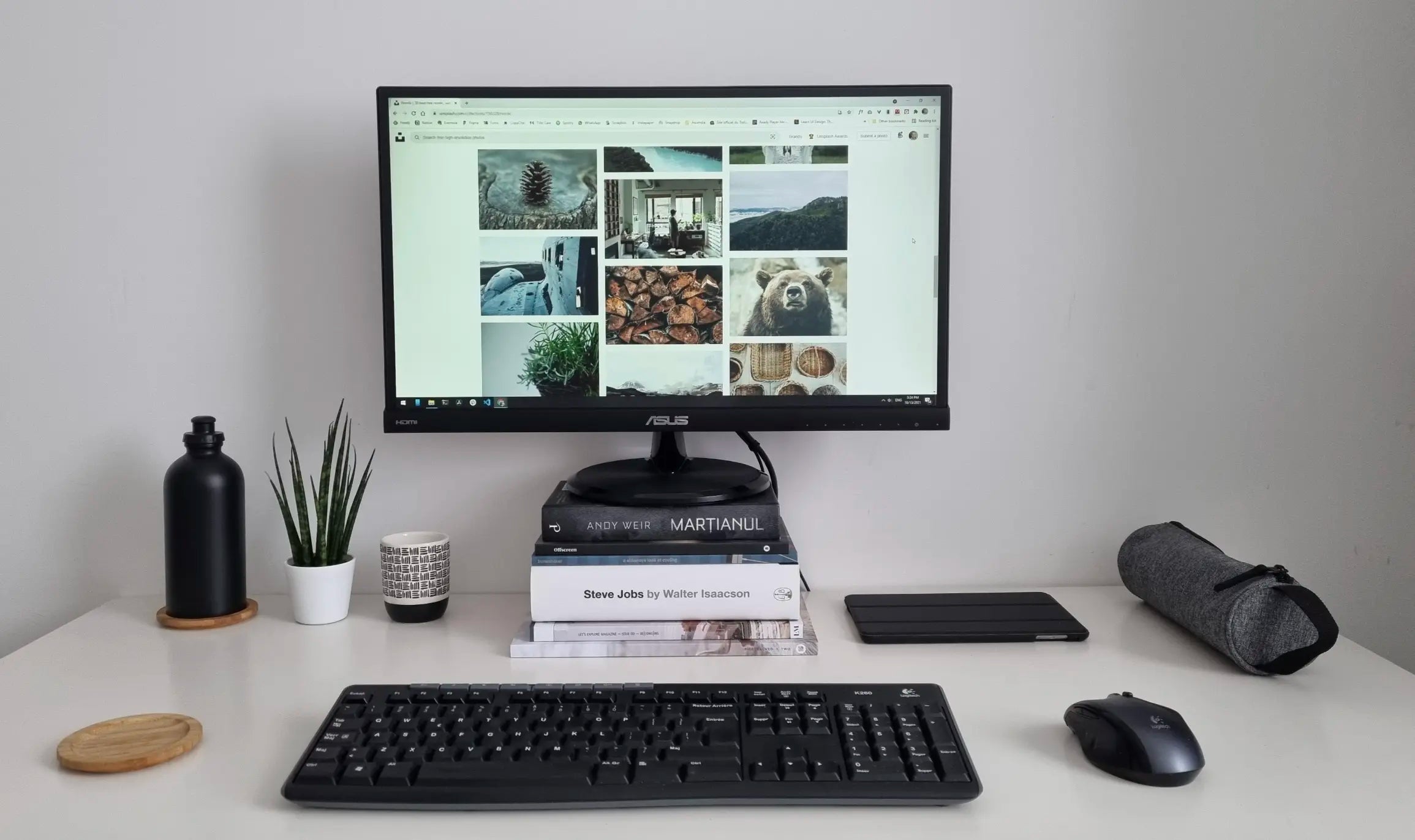
Your desk is supposed to be ground zero for deep work. Yet for most people it’s a war zone: tangled cables, a half-dead mouse that skips pixels, a keyboard that sounds like a typewriter, random coffee mugs, and a monitor sitting so low you’re developing a permanent forward-head posture.
Those tiny frustrations aren’t harmless. They create micro-delays, physical fatigue, and mental friction that silently rob you of hours every week. The fix isn’t a $5,000 Scandinavian makeover. It’s building a smart, intentional productivity desk setup that works with you instead of against you.
At Air Nova, we’ve spent years designing the exact tools professionals live in every day. This is the step-by-step blueprint we give our own team—and thousands of remote workers, creators, and traders—to build a clean, fast, comfortable desk that actually increases output.
Step 1 — Start With the Right Mouse (Your Primary Input Device)
You touch your mouse more than any other object on your desk—often 50,000+ times per day. A cheap or outdated one is the single biggest bottleneck in most setups.

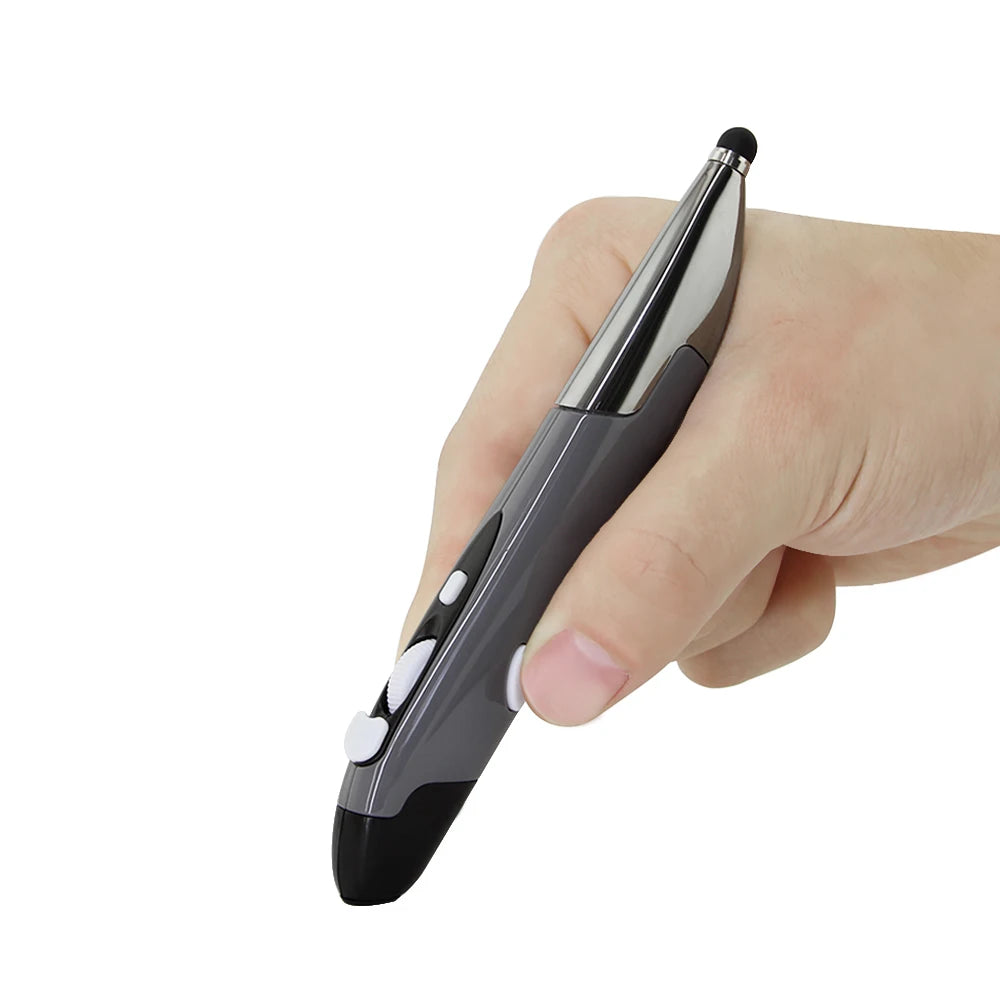
A smart productivity mouse needs:
- Pixel-perfect sensor accuracy (no skipping, no acceleration)
- Ergonomic sculpting that supports your hand for 10+ hour days
- Programmable buttons and gesture controls for one-click actions
- Sub-1 ms wireless and silent switches
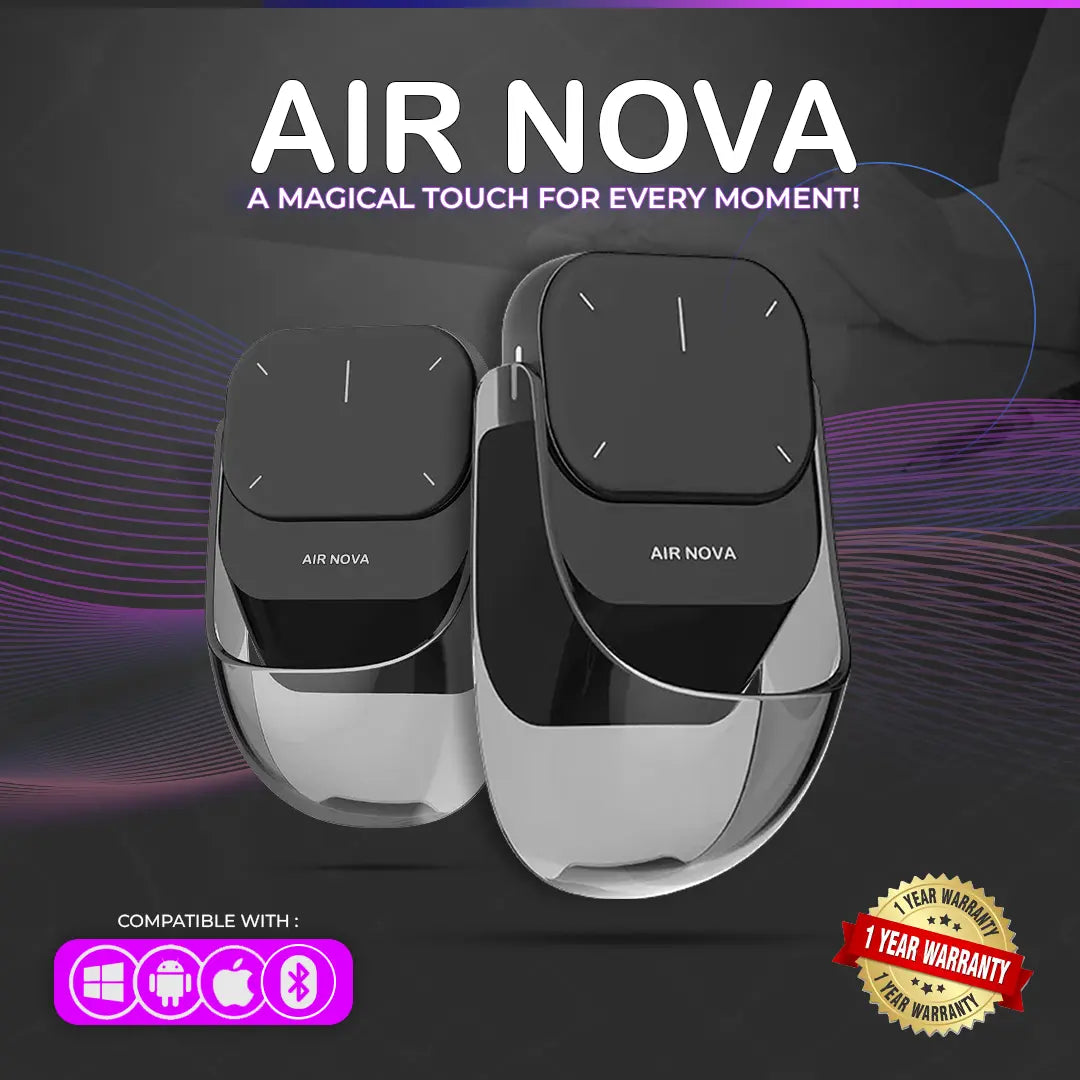
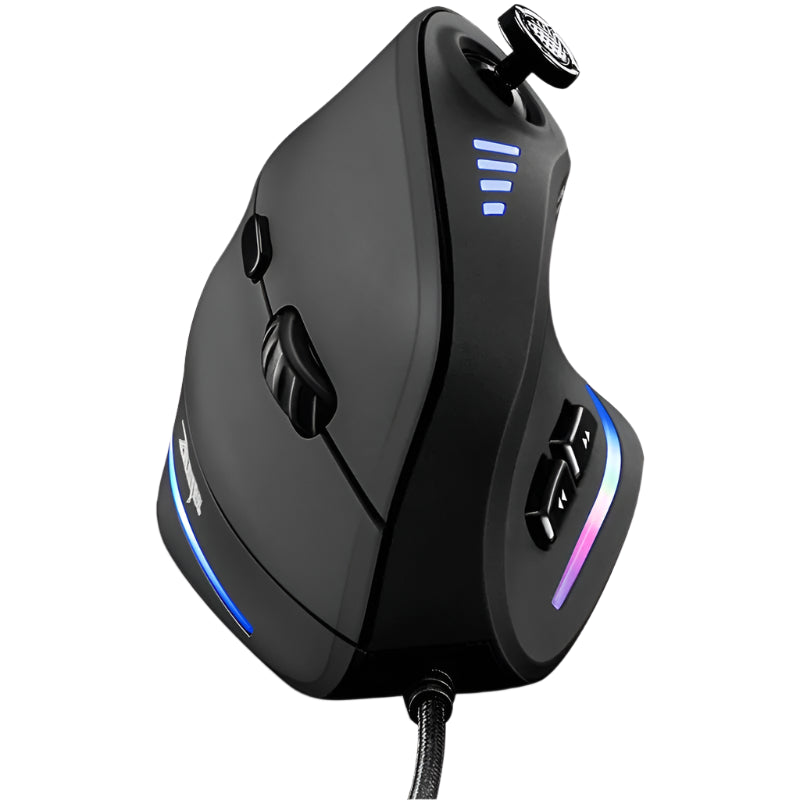
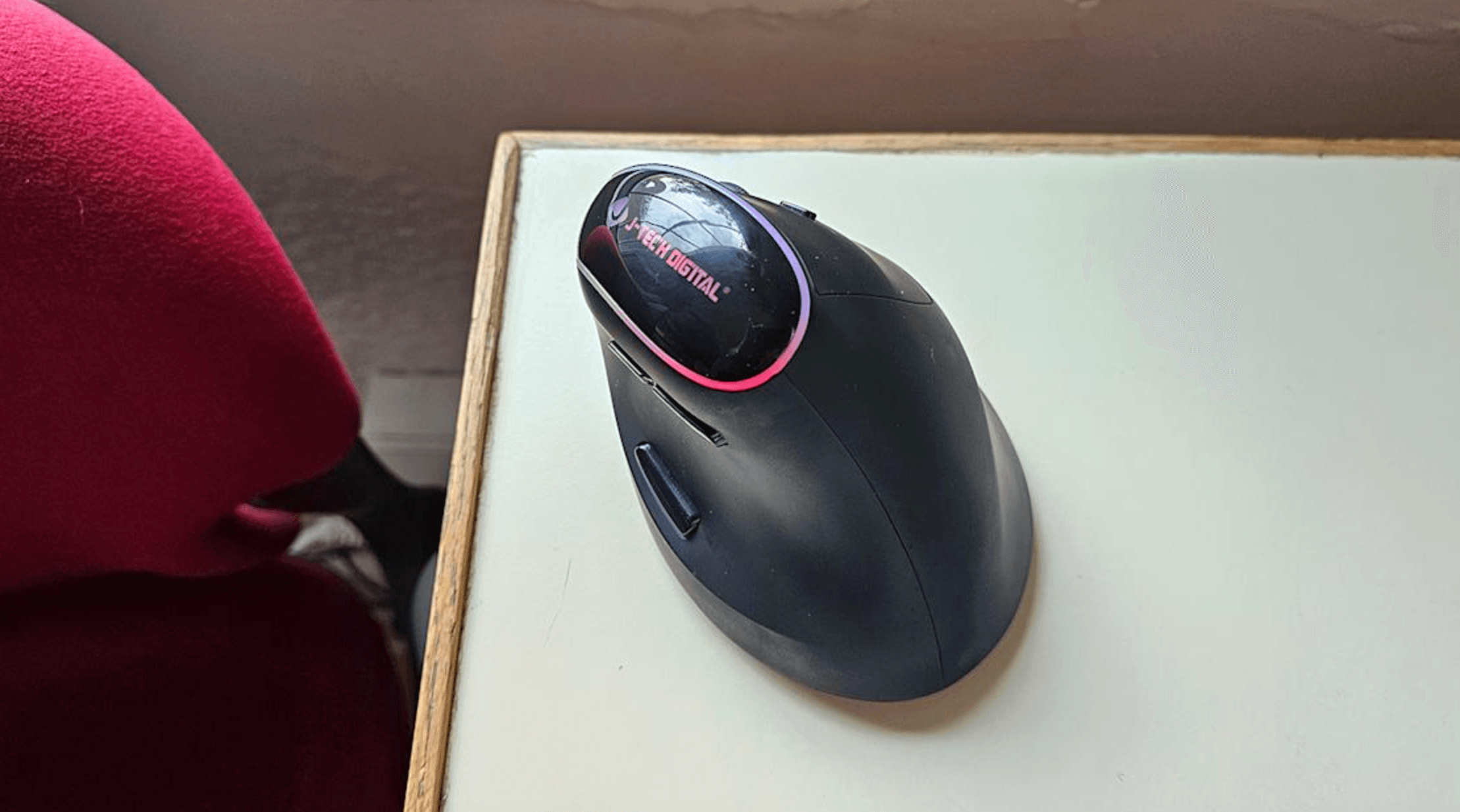
The Air Nova Smart Mouse was engineered exactly for this. Its 32,000 DPI sensor glides across ultrawide and multi-monitor setups without effort, the full-palm design keeps your wrist neutral, and the 12 programmable buttons let you mute Zoom, switch spaces, or trigger macros without ever leaving flow state. Explore the complete Smart Mouse Collection to match your aesthetic.
Step 2 — Upgrade Your Keyboard for Speed & Accuracy
After your mouse, your keyboard is the second-most-used input tool. A great one reduces errors, keeps wrists happy, and turns repetitive actions into single keystrokes.
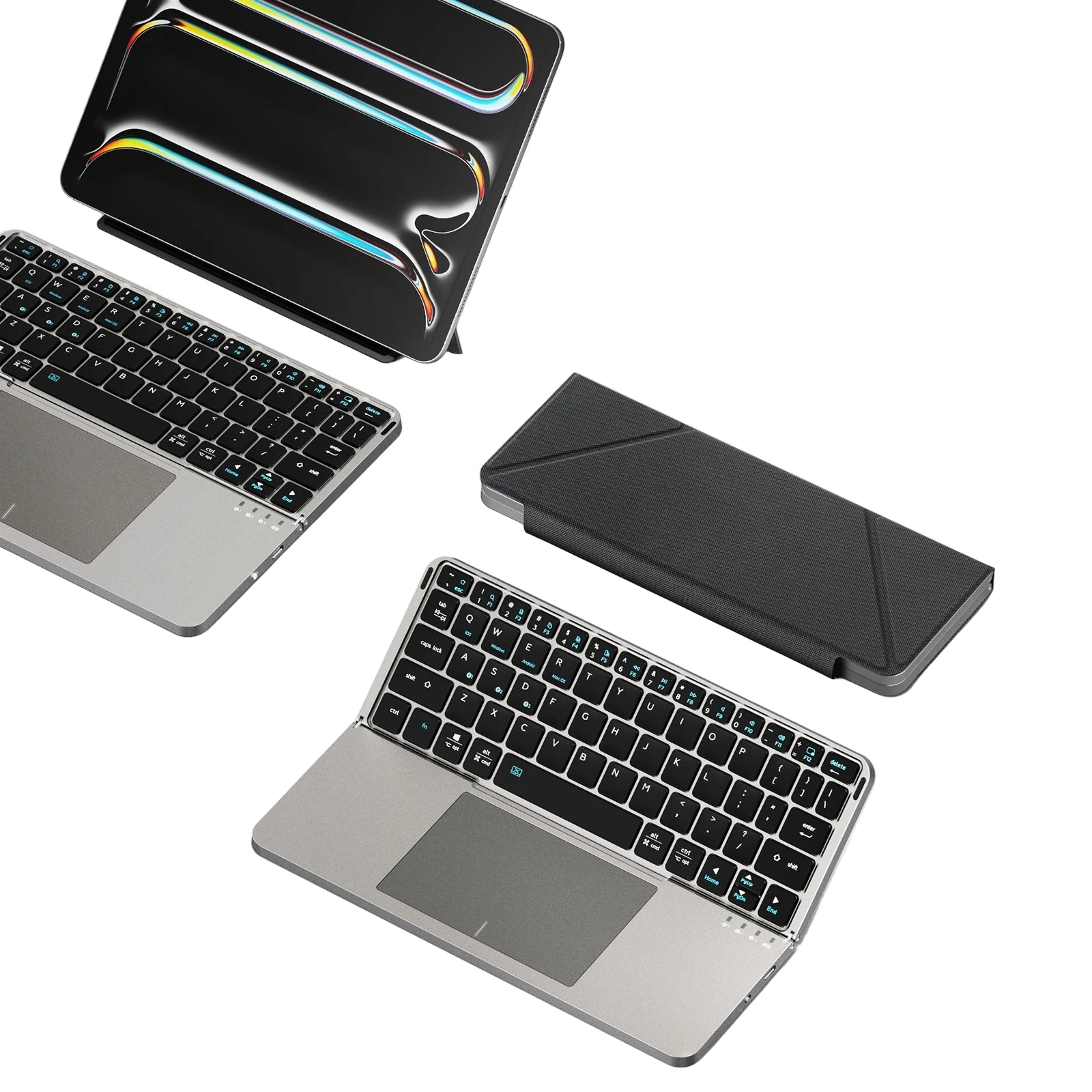
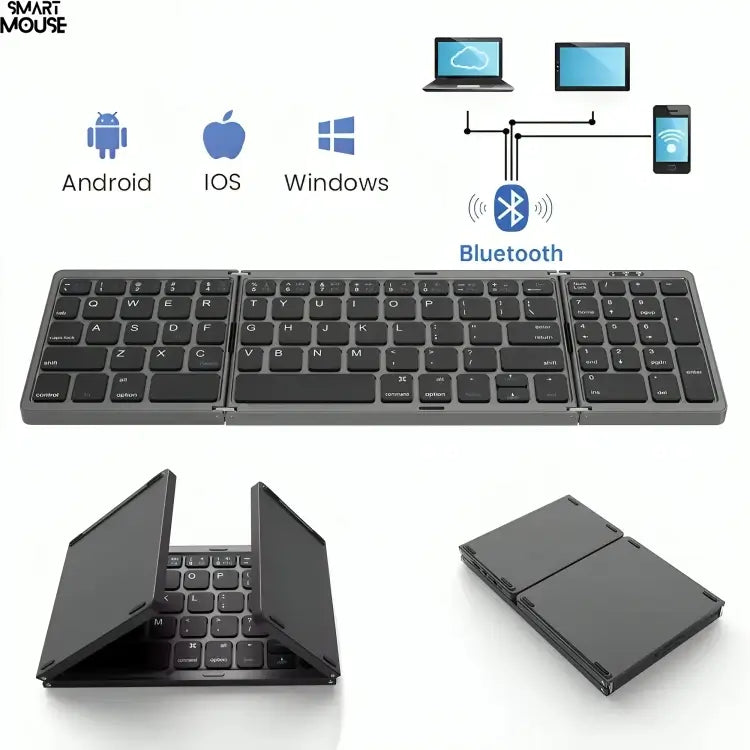
Look for low-travel scissor switches, per-key macros, multi-device Bluetooth pairing, and near-silent operation.
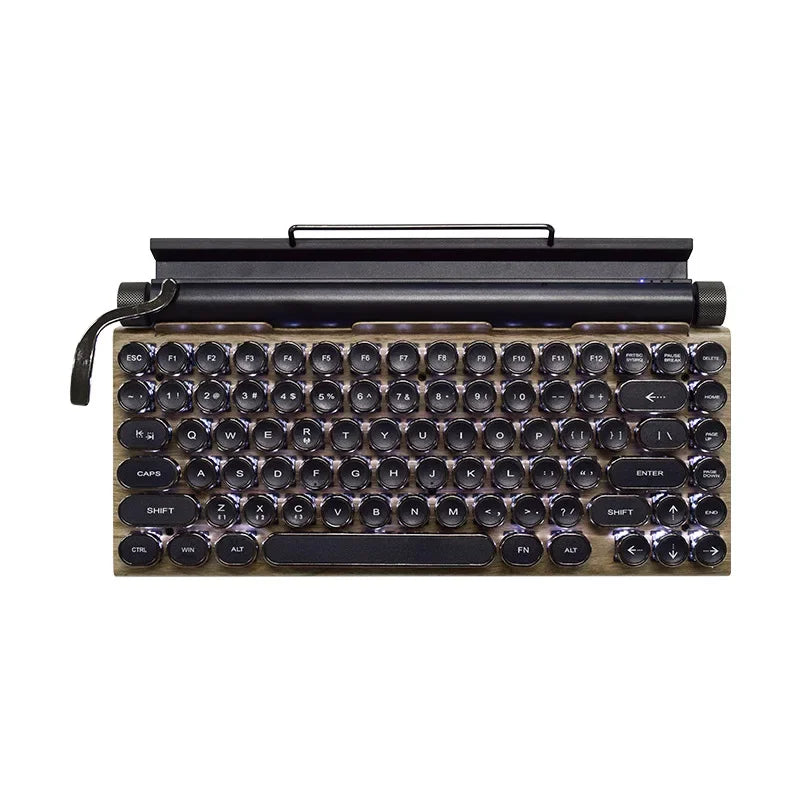
The Touch Nova Smart Keyboard Collection delivers all of that plus pre-programmed layers for Adobe, Figma, TradingView, Notion, and Microsoft Office. Switch instantly between laptop, tablet, and phone—your hands never leave the home row.
Step 3 — Add a Secondary Screen or Tablet for Multitasking
Tabbing between windows kills momentum. A dedicated second display for reference, chat, timers, or dashboards is one of the highest-ROI upgrades you can make.
The NovaPad 14 Productivity Tablet is purpose-built for this role. Run full desktop apps, mirror your main screen, or use it as an always-on Slack + calendar + notes station. The included magnetic keyboard and precision stylus turn it into a complete second workstation that travels with you.
Step 4 — Fix Your Power & Cable Chaos
Visual clutter creates cognitive load. Every loose cable is a tiny distraction that pulls you out of deep work.
A single charging hub solves it instantly. The CyberDock 3-in-1 Wireless Charging Station delivers 15W fast charging for phone, earbuds, and watch while keeping your desk surface completely clean. One glance and you know everything is powered and ready—no more hunting for the right cable mid-call.
Step 5 — Optimize Your Desk Layout for Ergonomics
Great gear is useless if your body is fighting bad angles all day.
- Top of monitor at or slightly below eye level
- Elbows at 90–100° when typing/mousing
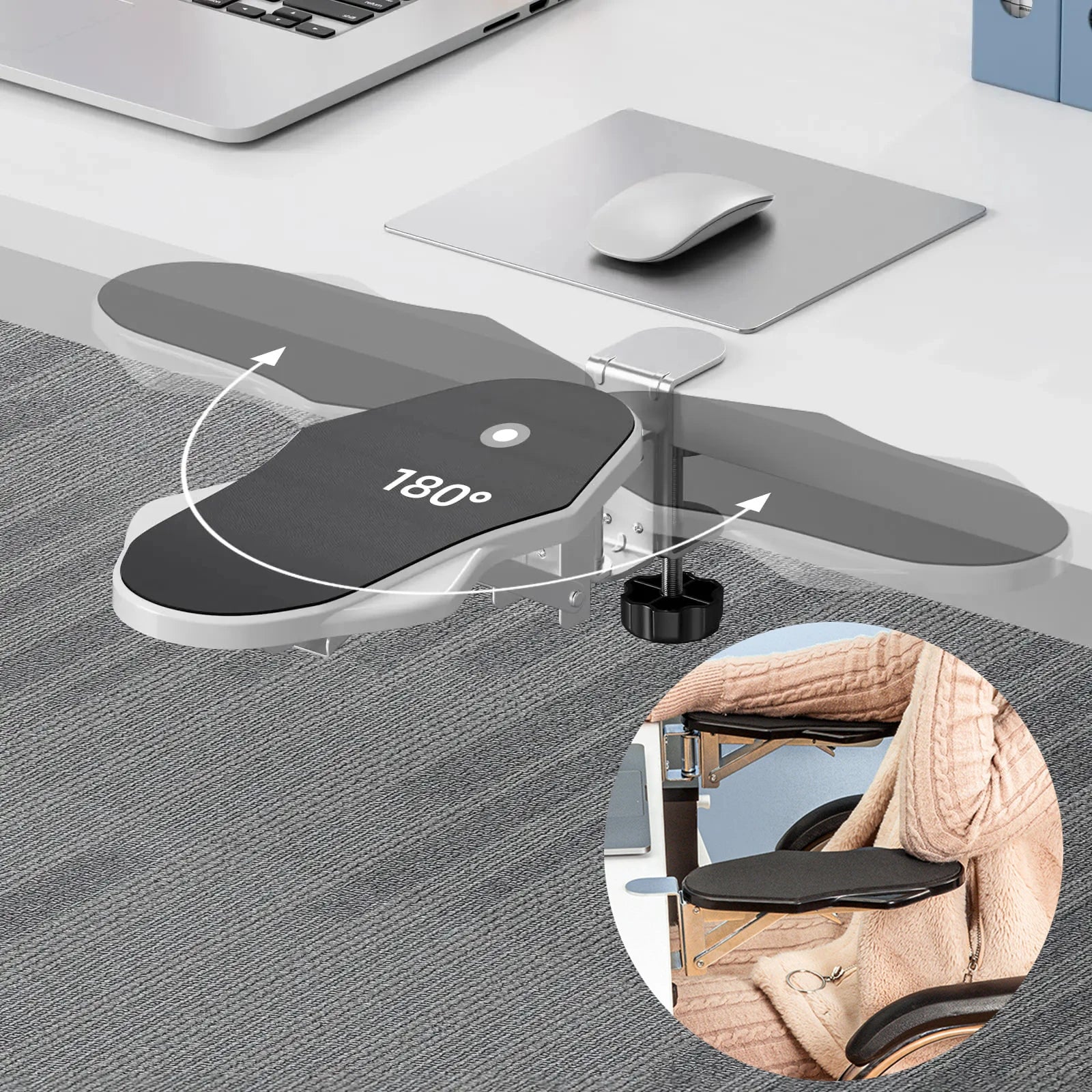
- Wrists straight and floating (never resting on sharp edges)
- Feet flat on floor or footrest
- Keyboard and mouse at the same height, close to your body
- Primary screen directly in front, secondary screen adjacent
Quick win: use a laptop stand or stack of books to raise your display—most people see an immediate posture improvement.
Step 6 — Lighting Matters More Than You Think
Poor lighting causes eye strain, headaches, and afternoon energy crashes.
Ideal setup:
- 5000–6500 K daylight-balanced LED bar mounted above your monitor
- Indirect ambient light behind you to reduce glare
- Warm 2700 K bias lighting for evening sessions
Even a $40 adjustable desk lamp beats harsh overhead fluorescents and dramatically improves focus and comfort.
Step 7 — Minimize Distractions & Maximize Focus
A smart desk isn’t just physical—it’s behavioral.
- Keep only today’s tools visible (everything else goes in a drawer)
- Use Do Not Disturb schedules on all devices
- Set up a “focus playlist” or brown noise track
- Turn on website blockers during deep work blocks
- End each day with a 2-minute desk reset
Step 8 — Add Smart Accessories That Boost Output
Small upgrades, big returns:
- Large desk mat with zoned wrist support
- Adjustable laptop/monitor stand
- Under-desk cable tray
- Portable 2 TB SSD for fast local files
- Memory foam seat cushion with coccyx cutout
Step 9 — Build a Setup That Matches Your Workflow
One size never fits all.
- Designers: NovaPad 14 as extended canvas + Touch Nova Keyboard with Adobe macros
- Traders: Smart Mouse with one-click order shortcuts + dual 4K monitors
- Video Editors: NovaPad as timeline reference + CyberDock always powered
- Students: NovaPad for split-screen notes + Smart Mouse for fast navigation
- Remote Workers: Full Air Nova stack for seamless laptop → tablet → phone switching
Step 10 — Build Your Productivity Ecosystem (Air Nova Advantage)
The real power happens when every device speaks the same language.
With Air Nova:
- Your Smart Mouse and Touch Nova Keyboard share profiles across devices
- The NovaPad 14 becomes a true second brain with desktop-class multitasking
- The CyberDock keeps everything charged and ready
You’re not just buying tools—you’re building a unified system that gets faster and smarter the more pieces you add.
Final Verdict
A smart productivity desk setup isn’t a luxury. It’s the highest-leverage investment you can make in your output, health, and sanity.
Start with the foundation that touches your hands thousands of times a day: the Air Nova Smart Mouse. Add the keyboard, tablet, and dock as your workflow demands.
Thousands of professionals already have. Build yours today—and feel what real flow is supposed to feel like.


Leave a comment
This site is protected by hCaptcha and the hCaptcha Privacy Policy and Terms of Service apply.