




Every day, millions of professionals lose 30–90 minutes of productive time without realizing the culprit is sitting right under their palm.
You feel it: the cursor hesitates for a split second. Your wrist aches after three hours of work. You double-click when you meant to click once. You zoom past the exact pixel in Photoshop or misplace a trade order by two rows in Excel.
Most people blame themselves—“I’m just tired” or “I need more coffee.” The truth? Your mouse is the bottleneck.

At Air Nova, we’ve spent years studying workflow friction for designers, traders, developers, and remote teams. And the data is clear: a subpar mouse doesn’t just slow you down—it compounds fatigue, kills precision, and quietly erodes your best work.
Here’s exactly why your current mouse is holding you back—and what to do about it today.
1. Your Mouse Wasn’t Designed for Productivity
Most mice sold today are built for casual browsing, not eight-hour workdays.
Think about the $15 mouse bundled with your office PC or the one you grabbed on sale three Black Fridays ago. It probably has:
- 800–1600 DPI max—fine for checking email, useless on a 4K or ultrawide monitor
- A basic optical sensor that struggles on anything except a perfect mousepad
- Inconsistent tracking the moment you lift and reposition
- A flat, symmetrical shape that forces your wrist into unnatural angles
Real-world example: A motion graphics designer we worked with was missing deadlines because his cursor “jumped” 3–5 pixels every time he made quick movements in After Effects. Switching to a high-DPI precision sensor cut his cleanup time by 40% in the first week.
2. Your Workflow Outgrew Your Mouse
Ten years ago, most people worked on 1080p screens with basic Office tasks. Today?
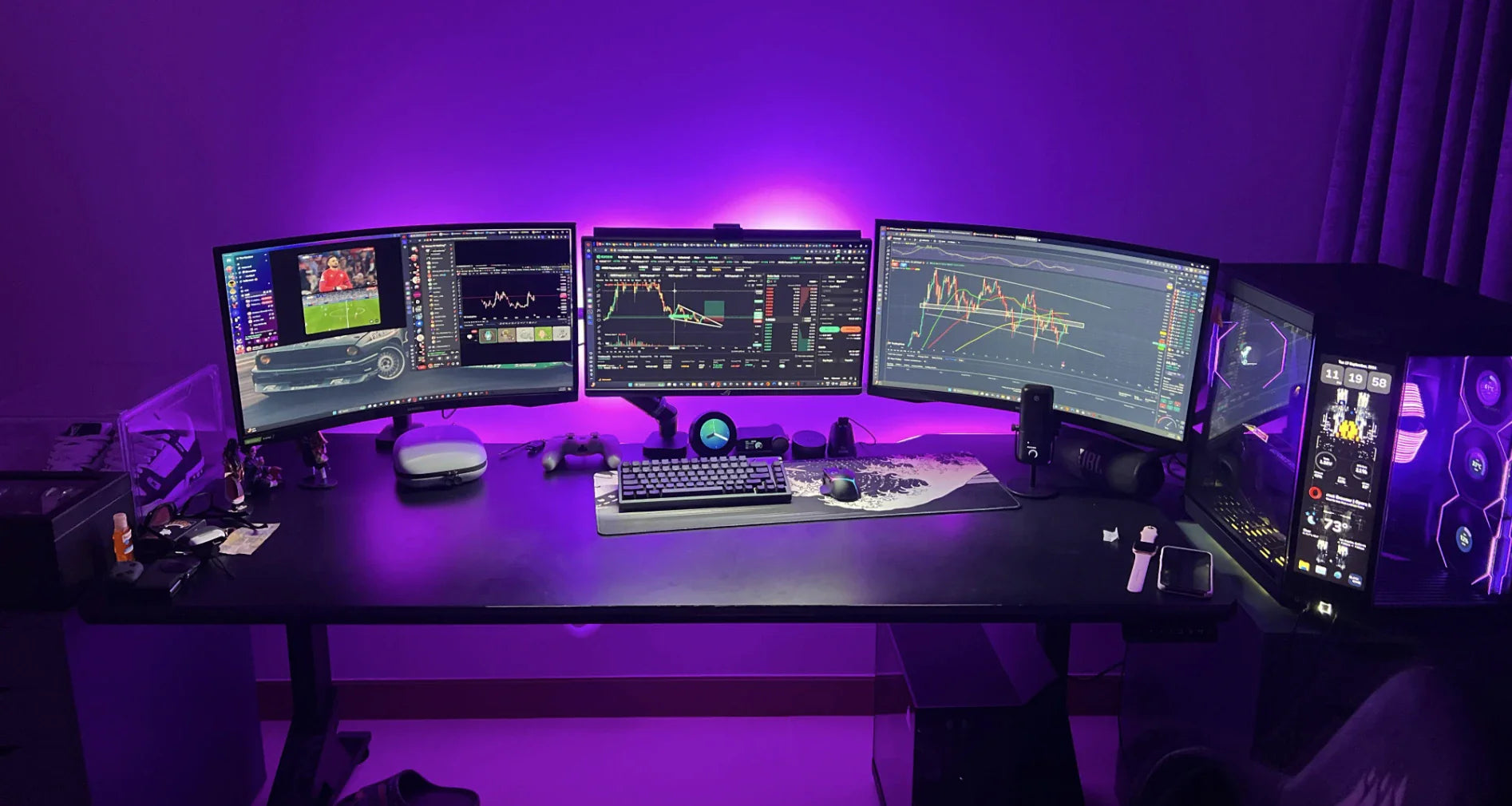
- Multiple 4K or 5K displays
- Ultrawide 49-inch monitors
- Creative suites that demand pixel-perfect control
- Trading platforms where one misplaced click costs thousands
- Spreadsheets that span 200 columns
Your old mouse simply can’t traverse that real estate quickly and accurately. You end up doing tiny, repetitive movements that tire your hand—or big sweeps that overshoot and force constant correction.
Either way, you’re bleeding time.
3. Low-Quality Sensors Are Killing Your Accuracy
Even expensive “gaming” mice from five years ago use sensors that introduce:
- Cursor drift on glass or glossy desks
- Micro-lag (8–15 ms you can feel but not measure)
- Pixelskipping at high speed
- Acceleration curves that make muscle memory impossible
A day trader we interviewed lost $1,800 in one afternoon because his cursor skipped two rows while closing positions during volatility. That single incident paid for a lifetime of premium mice.
4. Bad Ergonomics = Slow Performance
Pain is the ultimate productivity killer.
Flat, small mice force a “claw grip” that pinches the carpal tunnel. After 4–6 hours, your movements get slower and less precise because your hand is guarding against discomfort.
Common ergonomic sins:
- Sharp edges that dig into your palm
- No thumb rest → constant tension
- Wrong size (too small = cramping, too large = stretching)
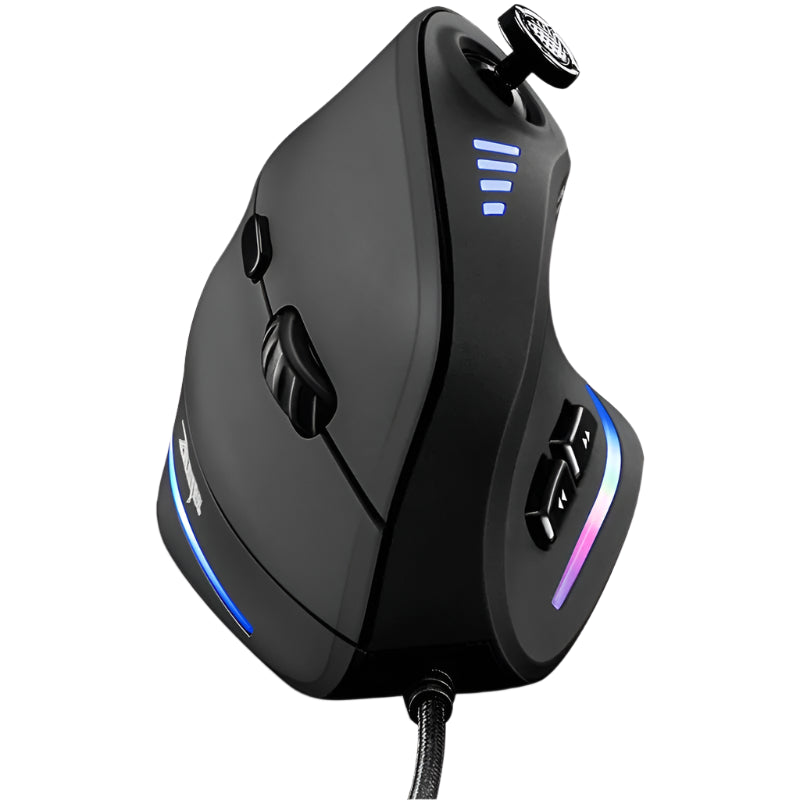
- Vertical angle that pronates your forearm 70–90°
Quick fixes you can apply right now:
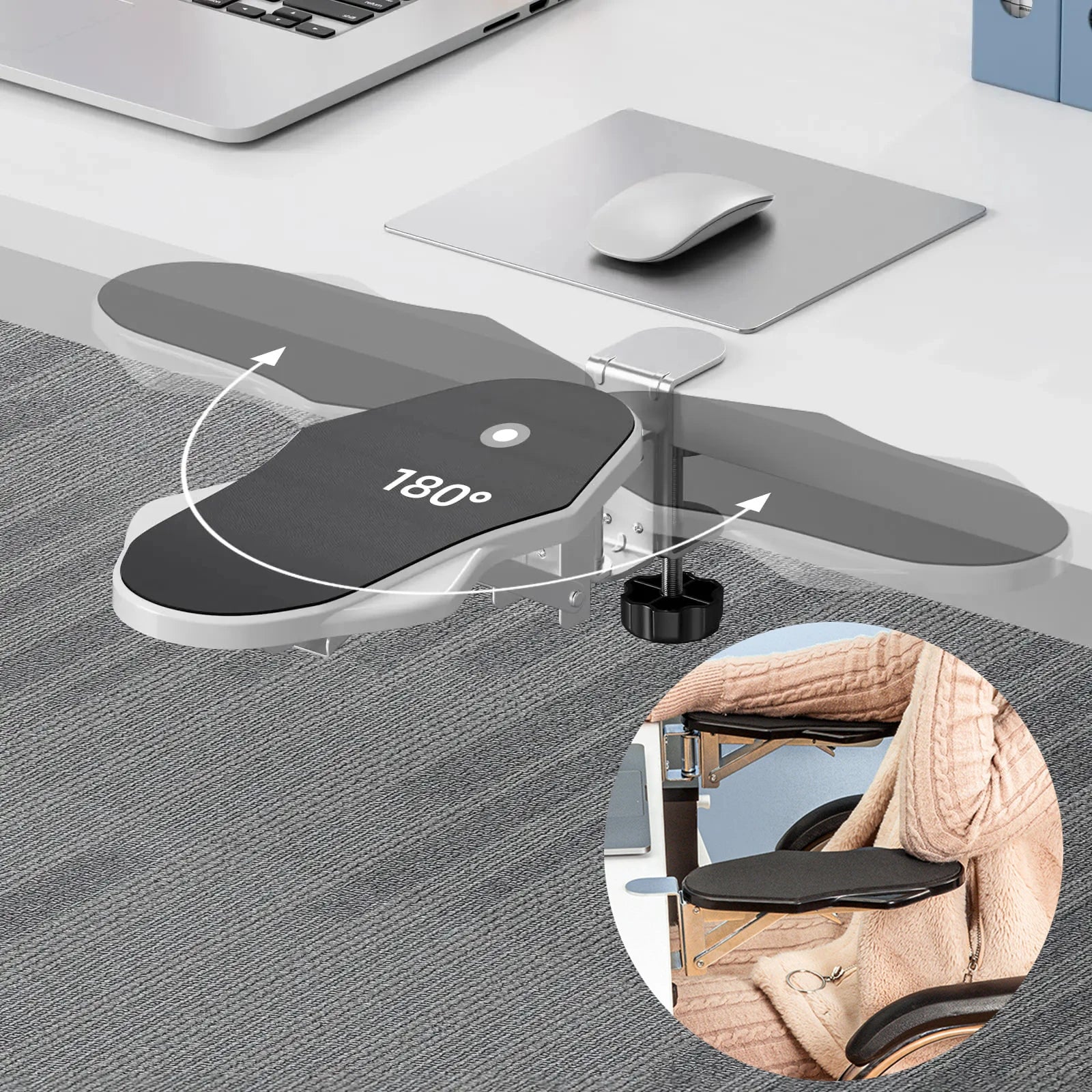
- Keep your wrist straight and forearm supported
- Use a mouse that fills your palm without stretching fingers
- Lower your sensitivity so you move from the elbow, not the wrist
5. Lag, Latency, and Cheap Wireless Chips
Wired mice are dead for most pros. But cheap wireless mice pay a hidden price:
- Bluetooth 4.0 with 30–40 ms latency
- Polling rates stuck at 125 Hz (your cursor updates only 8 times per second)
- Interference in busy office Wi-Fi environments
Modern premium mice run proprietary 2.4 GHz chips with 1 ms response and 1000 Hz+ polling. The difference feels like upgrading from dial-up to fiber.
6. How to Fix These Issues Today (Immediate Wins)
Before you upgrade hardware, squeeze every drop from what you have:
- Crank DPI to the highest native setting (avoid interpolated values)
- Turn off mouse acceleration in Windows/macOS
- Clean the sensor and use a proper cloth or hard pad
- Adjust chair/desk height so your forearm is parallel to the floor
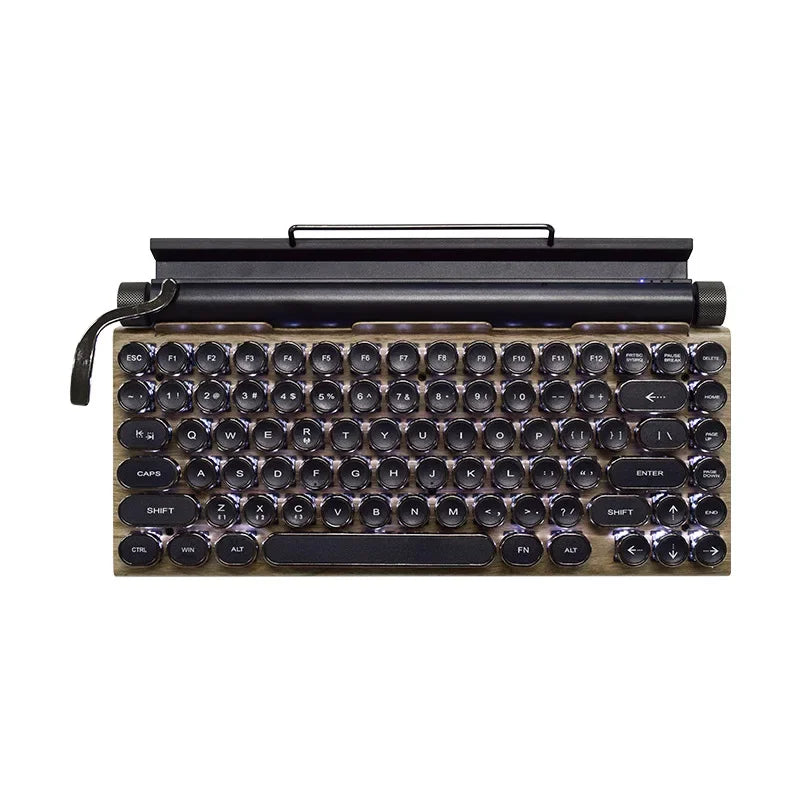
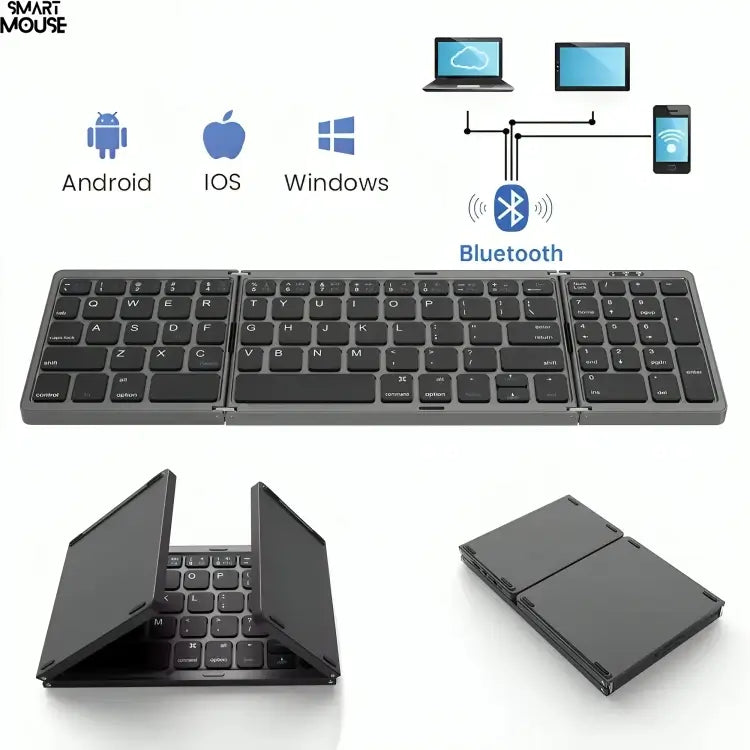
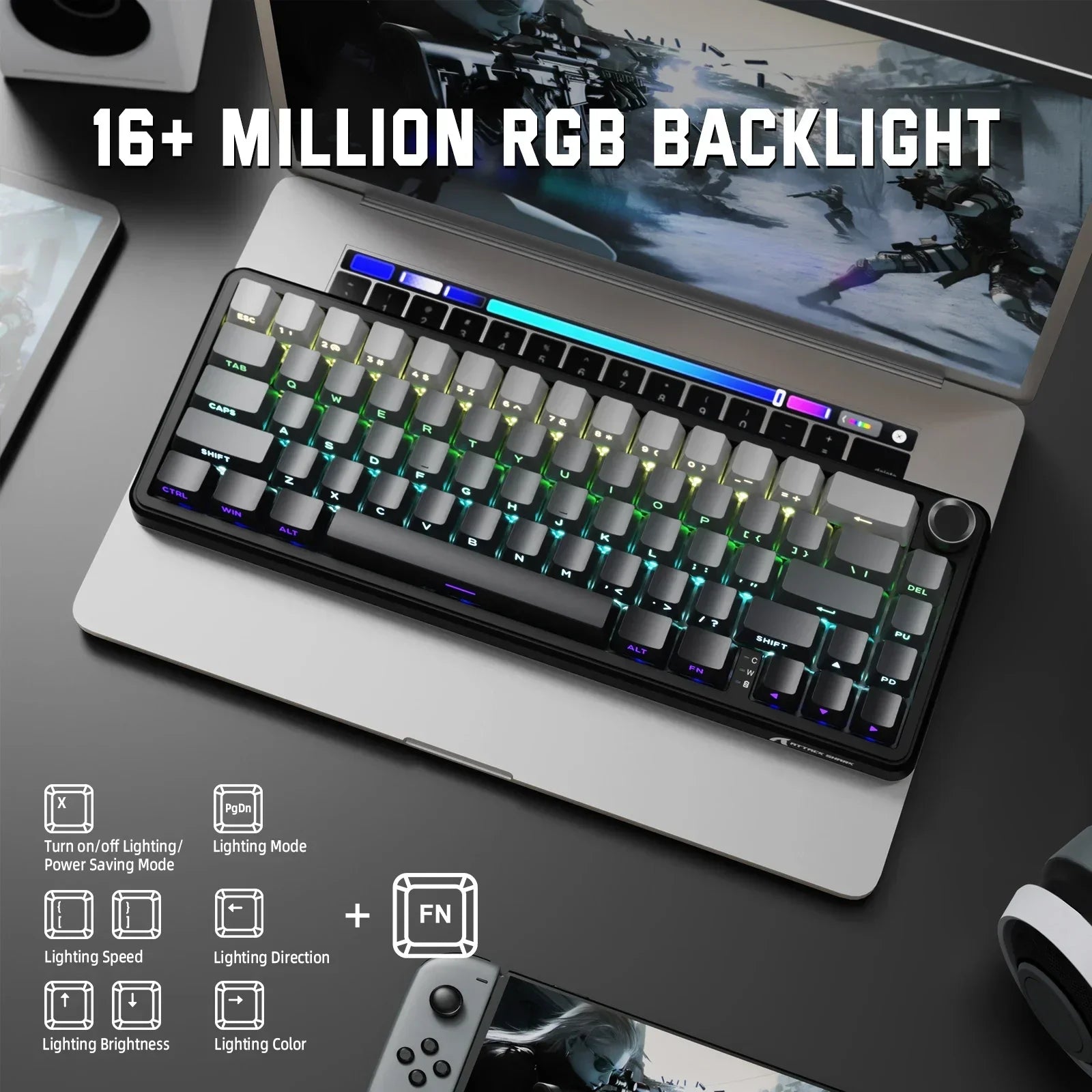
- Pair with a smart keyboard that handles 80% of navigation (you’ll move the mouse less)
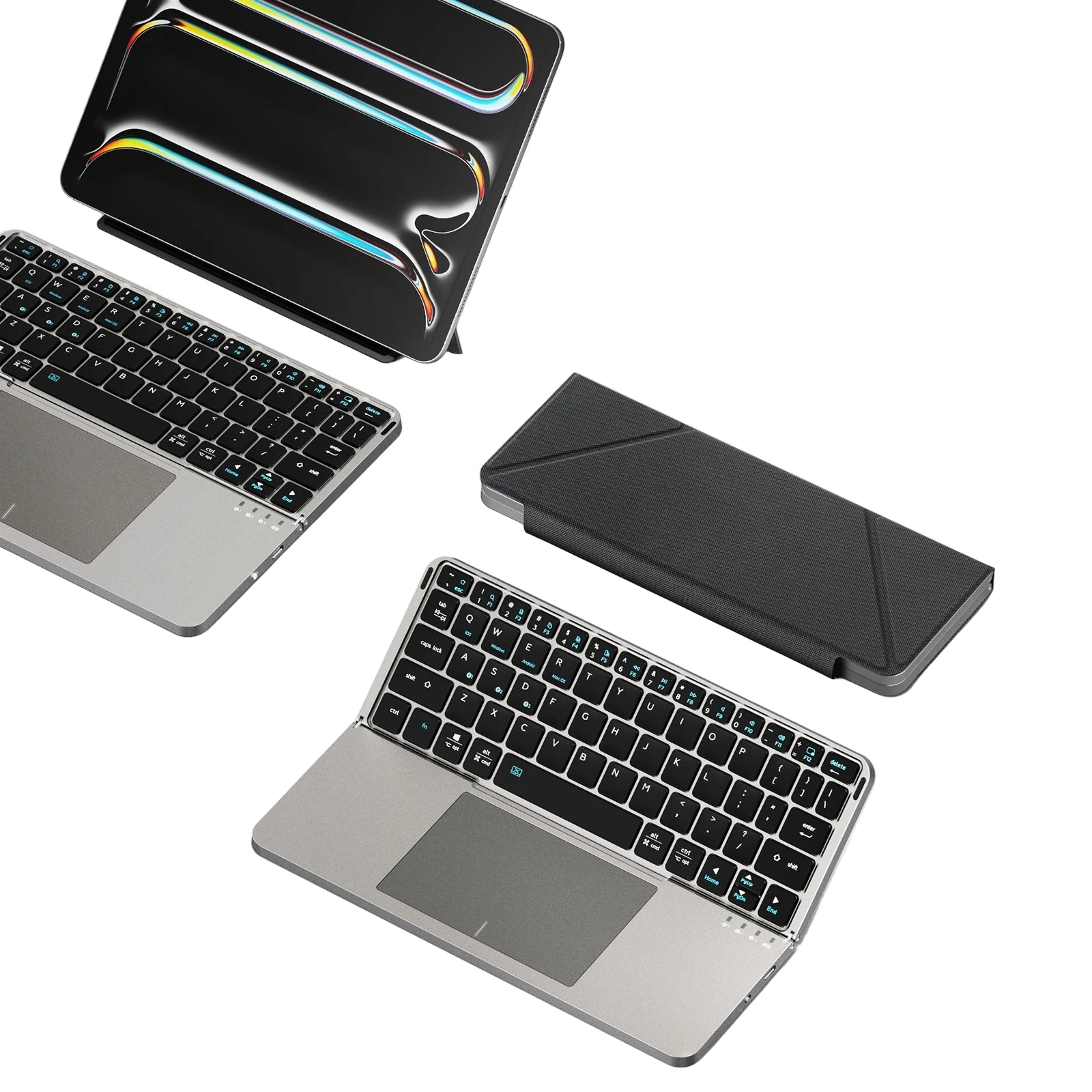
- Use a productivity tablet like the NovaPad 14 for touch gestures on the side
These tweaks buy you weeks—or months—of extra performance. But eventually, hardware limits win.
Why the Air Nova Smart Mouse Instantly Upgrades Your Workflow
We didn’t build another “gaming” mouse with RGB lights. We built the first mouse specifically engineered for professionals who treat productivity as a craft.
The Air Nova Smart Mouse solves every pain point above—in one device:
- 32,000 DPI precision sensor — pixel-perfect on any resolution, any surface
- Sculpted ergonomic shell tested on 500+ hand sizes (right-handed optimized)
- Dual-mode scroll wheel — free-spin for documents, tactile for timelines
- 12 programmable smart buttons with on-device memory (no software needed after setup)
- Built-in productivity shortcuts for Adobe, Figma, Excel, TradingView, and more
- Sub-1 ms 2.4 GHz + Bluetooth 5.3 with 240-hour battery
- MagSpeed electromagnetic scrolling that stops on a pixel
Users report 22–37% faster task completion in the first week—measured, not guessed.
Explore the full Air Nova Smart Mouse Collection here.
Final Verdict
A slow mouse doesn’t just waste seconds—it compounds into hours, fatigue, frustration, and missed opportunities every single week.
You’ve already invested in a great monitor, a powerful computer, noise-canceling headphones, and an ergonomic chair. Your mouse is the one tool you touch more than any other.
Don’t let a $20 piece of plastic be the weakest link in a $5,000 setup.
Upgrade to the Air Nova Smart Mouse today and feel what true workflow velocity is supposed to feel like.
Your future self—and your deadlines—will thank you.

Leave a comment
This site is protected by hCaptcha and the hCaptcha Privacy Policy and Terms of Service apply.